Free ATS Resume Templates & Formatting Guide (2026)
ATS resume templates are editable documents formatted to be easily parsed by Applicant Tracking Software like Taleo or Workday. Follow this guide, complete with free templates, to enhance the chances your skills reach the eyes of human recruiting managers rather than being scrambled and buried by AI filters.
Optimize Your Resume

Key takeaways from this guide
- Choose your free template: No hidden paywalls. Download .docx templates directly or customize the others in our free resume builder and optimizer.
- Standard formatting wins: Some ATS platforms still struggle with complex layouts. A clean, single-column format ensures your content gets through intact.
- Avoid hidden traps: Tables, text boxes, and graphics confuse parsers. Our templates are engineered specifically without these risky elements.
- Tested on top systems: The tips in this guide and the templates provided have been tested against leading systems including Taleo, Greenhouse, iCIMS, and Workday.
ATS resume templates
Downloadable Microsoft Word templates
All of these templates are free to direct download and edit as Microsoft Word files. Follow the formatting guide below for further editing.
How to use Word templates:
- Download your preferred template.
- Open the file in Microsoft Word.
- Double click the placeholder text to replace it with your personal information and work history.
- Save as a standard Word Document or an ATS-compatible PDF (see file type rules below).
Looking to maximize your visibility? Pair your new resume with our ATS-Friendly Cover Letter Templates.
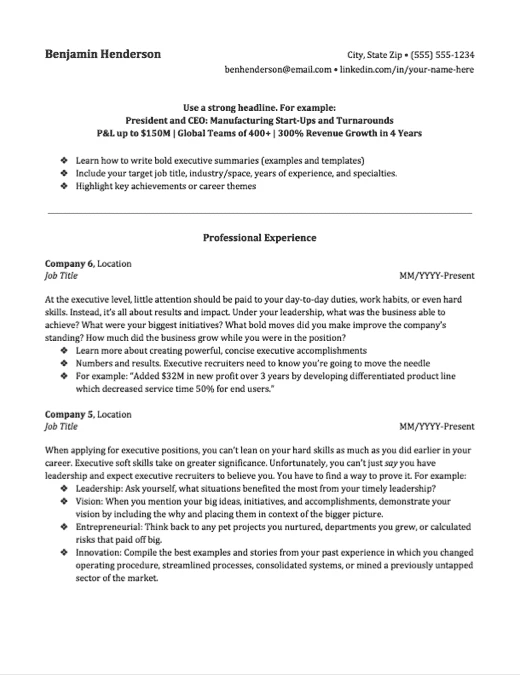
Structured Executive Resume Template
Download
Sleek Executive Resume Template
Download
Segmented Executive Resume Template
Download
Polished Executive Resume Template
Download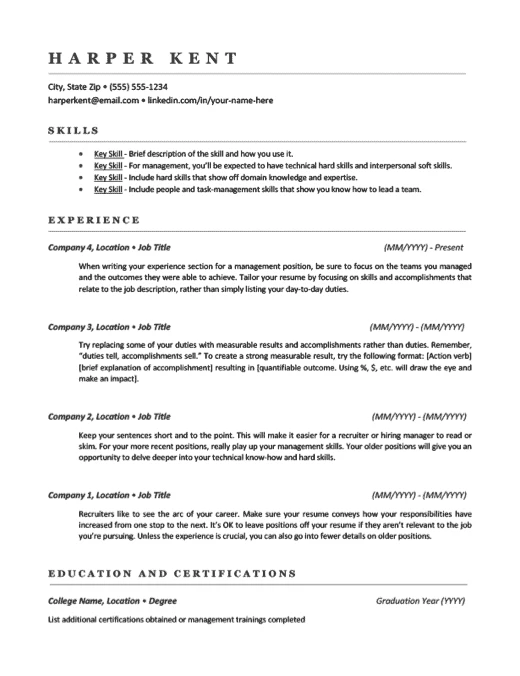
Minimalist Management Resume Template
Download
Veteran Management Resume Template
Download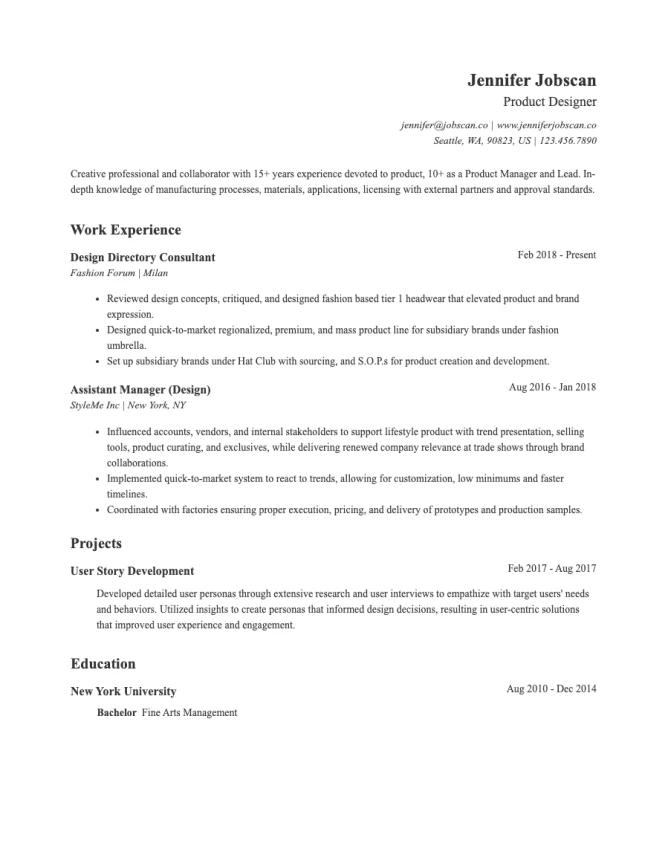
Classic Business Resume Template
Download
Spacious Mid-Level Resume Template
Download
Condensed Mid-Level Resume Template
DownloadUnlike generic resume builders, Jobscan’s template designed are backed by extensive data. We analyzed over 2.5 million resume scans to reverse engineer exactly what parsers want to see.
Our templates are built to avoid the formatting elements most likely to cause parsing problems, and tested against major ATS platforms including:
- Taleo
- Greenhouse
- Workday
- iCIMS
- Lever
Editable templates from our Resume Builder
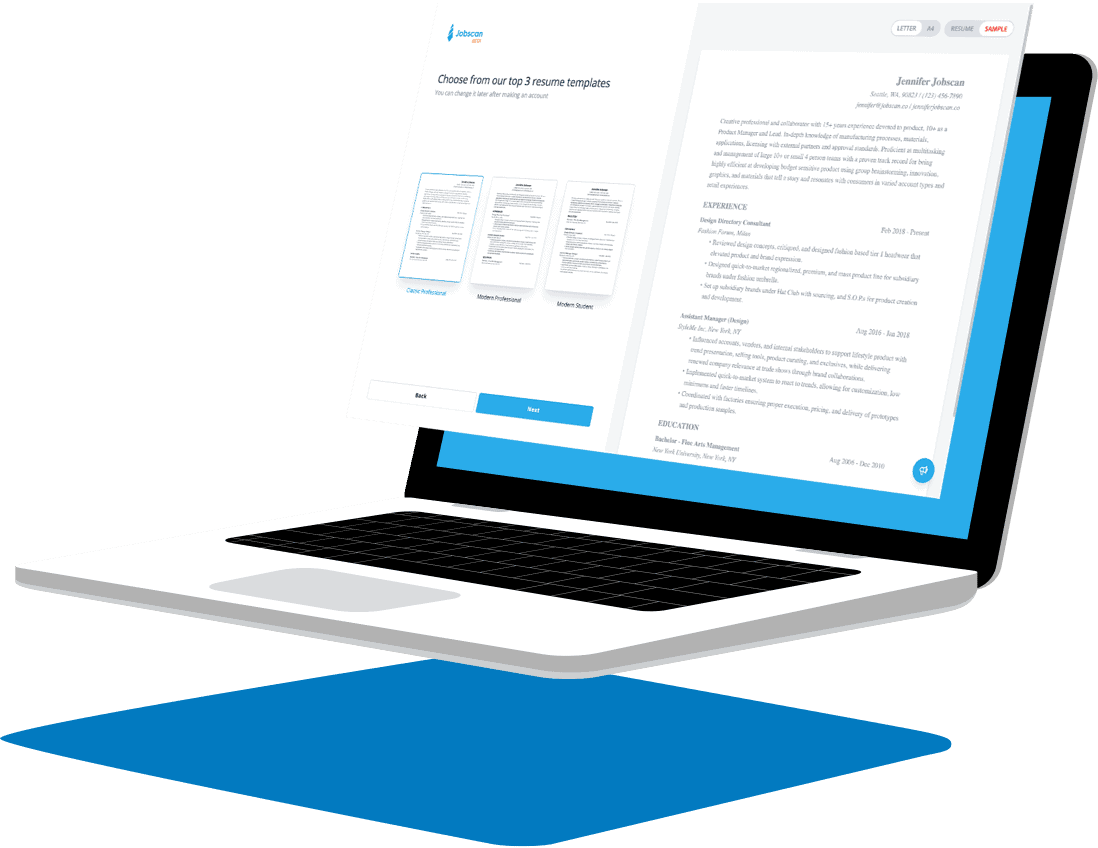
Build, optimize, and download these ATS resume templates for free in our resume builder. Each template is pre-loaded, ready for customization, and fully optimized for applicant tracking systems, giving you the best chance after writing your resume of getting noticed by employers.
Classic Business Resume Template
Use This Template
Sleek Professional Resume Template
Use This Template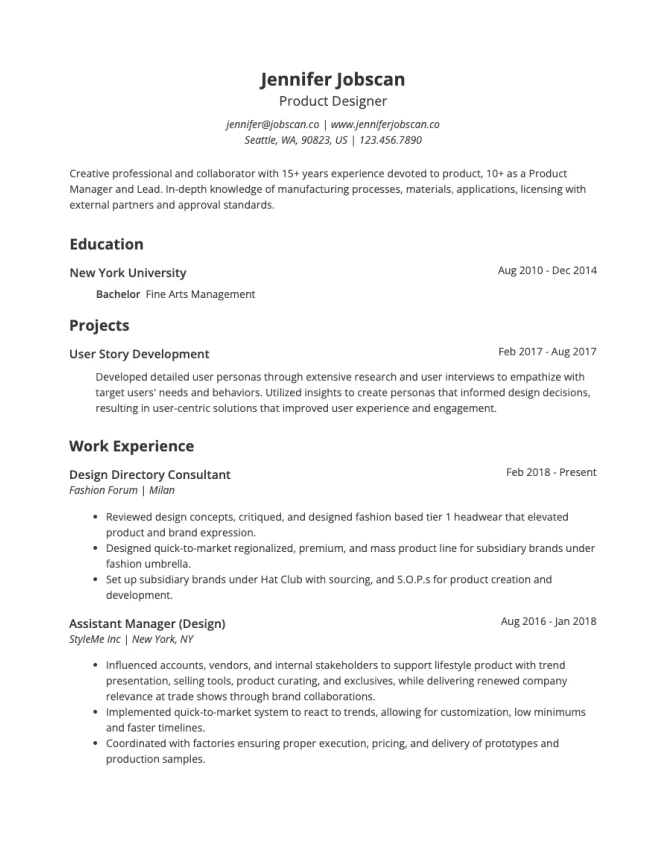
Modern Student Resume Template
Use This Template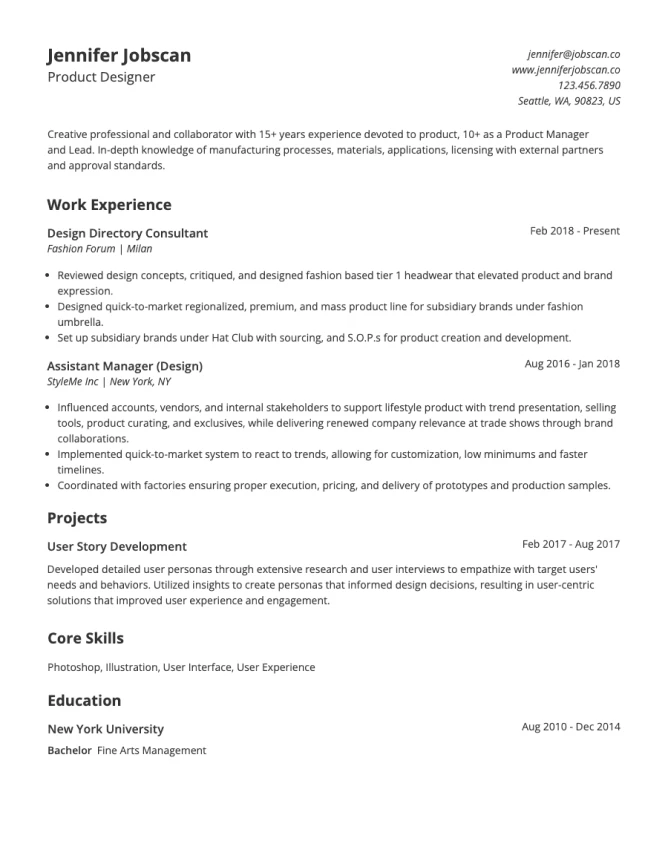
Traditional General Resume Template
Use This Template
Boxed General Resume Template
Use This Template
Minimal General Resume Template
Use This Template
Bold Entry-level Resume Template
Download
Centered Entry-level Resume Template
Download
Graduate Leadership Resume Template
DownloadOptimize your resume with our resume scanner
Upload your existing resume into our scanner below and match it against the job you’re applying for to get your Match Rate. Then improve using our guide.
How do you make an ATS-friendly resume?
What is an applicant tracking system (ATS)?
An Applicant Tracking System (ATS) is a tool that helps companies handle job applications. It scans your resume and takes out the text. This step is called “parsing”. After this, some of them will rank candidates. Then it stores the resumes in a searchable database. Recruiters can choose from the ranked candidates (if it is a ranking-based ATS) or search the database for strong candidates using resume keywords and skills.
There are two major hurdles that can mess you up here, and they can happen even if you are a great fit:
- First hurdle | formatting: if the ATS can’t ‘read’ your resume when it tries to take out the text, your information gets scrambled, and possibly your chances of getting found with it.
- Second hurdle | job match level: If your skills are not written clearly or placed well, the ATS may give you a lower score, if it’s equipped with that ability, or you won’t be easily searchable. You might end up missing in search results where other less qualified people seem to fit better.
Why have ATS optimization and resume tailoring become so important?
- Our 2025 study revealed that 97.8% of Fortune 500 companies use ATS to make hiring faster and easier. A growing number of small businesses use it too.
- Hiring managers get tons of resumes for each job opening: an average of roughly 400 applicants for remote applications.
- According to a Harvard Business School study on hiring, 88% of employers say good candidates are screened out because their resumes don’t match the exact criteria from the job description.
A resume the ATS can’t read, or one that’s missing the right keywords, can quietly eliminate you before a recruiter ever sees your name.
Why is a “boring” resume format better?
Many people looking for jobs pick pretty resume templates on Canva or LaTeX. These resumes are often heavy with pictures and shapes. They also contain text boxes, columns, and other special formatting. But these fancy design elements increase the risk of ATS software misreading or skipping parts of your resume, and content it can’t read may never reach a recruiter. Our testing on major applicant tracking systems like Greenhouse and SmartRecruiters revealed as much, with misaligned embedded images, changed bullet point formatting, and skipped text boxes just some of the issues when it came to the ATS retrieving information from the resume.
Here is what happens when the system tries to read these tricky parts:
Quick manual resume ATS ‘parsing’ test
Want to simulate what the Applicant Tracking System sees when it tries to parse your resume? You can run a simple manual test right now:
- Open your current resume.
- Click “Save As” and choose Plain Text (.txt).
- Open the new text file.
If your text is missing, out of order, or scrambled with weird characters, that’s what an ATS is going to be putting into your application file. Our tests across systems including Jobvite and JazzHR showed that each platform parsed and displayed resume information in a completely different order, so a resume that looks perfectly structured on screen can come out rearranged on the other side. The plain text test above is one way to get a closer look at what the software actually receives.
How do I format my resume to be ATS-friendly?
Tip #1: Use common fonts
Custom fonts like Poppins or Arimo look nice, but special fonts aren’t available in ATS software. When that happens, characters can be substituted, dropped, or garbled, and a resume with unreadable text will get buried regardless of your qualifications. Our testing of major ATS systems confirmed that formatting elements consistently behave differently than they appear in the original file, and fonts are no exception. Stick to standard system fonts.
- Safe Font examples: Arial, Calibri, Times New Roman, Helvetica, Georgia.
Tip #2: Keep a clean layout
An ATS-friendly resume needs a simple and neat format. Avoid text boxes, decorative images, and overly complex layouts. While many modern ATS platforms can handle basic tables and columns, results vary across systems, and a formatting error you can’t see could silently cost you. Our templates remove the guesswork entirely.
Tip #3: Stick to basic information flows
There are three resume formats you can use: the chronological resume, the functional resume, and the hybrid resume (or combination).
- The chronological format lists work experience with the newest job first and shows growth at work over time. This is good for people who have worked in one field for many years. It is also the easiest read for ATS systems.
- The functional format focuses more on skills than job history. This style is good for new graduates or people making a career change. But this style is harder for ATS systems to read well and must make careful use of the right keywords and follow good formatting rules.
- The hybrid format mixes both jobs and skills together. It helps show your wide range of skills across many jobs. With this type, an ATS can still read it well enough if you keep the format simple and clear.
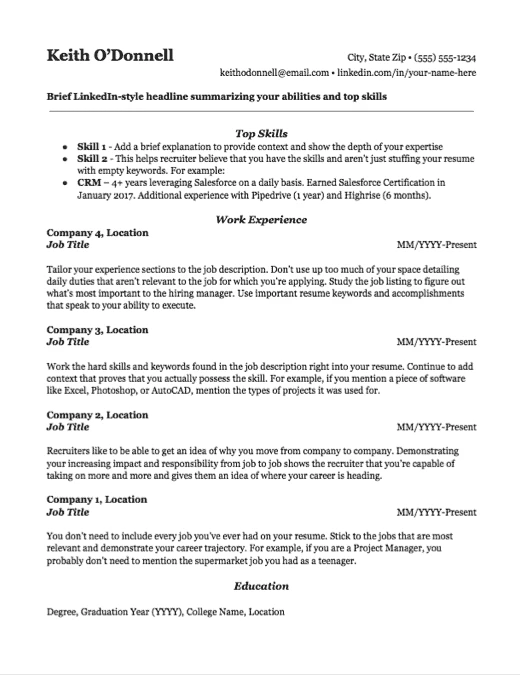
Standard Chronological Resume Template
Download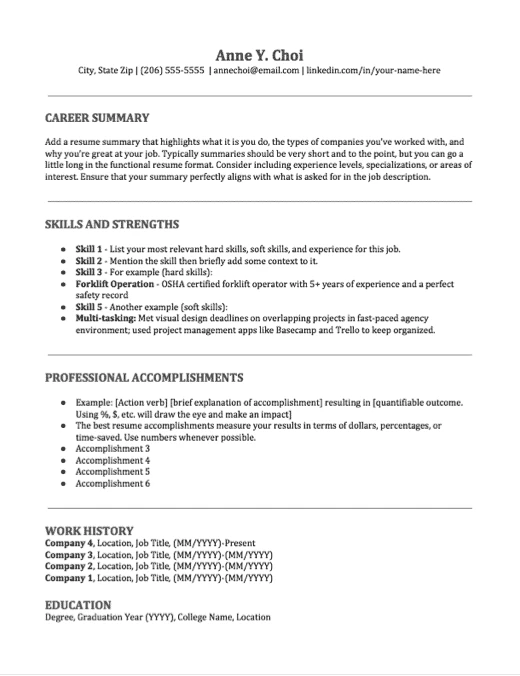
Standard Functional Resume Template
Download
Standard Hybrid Resume Template
DownloadTip #4: Create standard sections with recognizable headers
Make sure you name your sections so the reader can find them easily. The ATS system looks for certain words. As well, use or generate resume bullet points to make information easy to scan.
- ✅ Safe Headings: Work Experience, Education, Skills, Summary.
- ❌ Risky Headings: My Professional Journey, Where I’ve Studied, What I Bring to the Table.
Tip #5: Send your files in standard formats
When sending your resume, our research indicates that PDFs work better as the default file format. If you use a PDF, make sure you can highlight its text with your mouse. This means the text is clear and easy to read. Do not use PDFs made from pictures because they cannot be scanned by the system.
Tip #6: Optimize the content
Besides format, you also need to improve your content. For each job you apply for, tailor your resume. This gives you a better chance to get noticed by both the ATS and the person reading it. You can use our free resume scanner or try our full tools with a free trial. Our tools help organize, automate and improve your job search so you can apply and keep track easily and correctly.
How do I scan and optimize a resume?
Picking the right template is a great first step, but it’s not the last one. Aside from formatting, you still need to make sure your resume matches the job you’re applying for so it can get searched easily in the ATS by a real person. Jobscan’s resume scanner helps you do exactly that. Follow these five steps to go from a blank template to a resume that’s ready to send.
Step 1. Upload your current resume
Open Jobscan’s free resume scanner and upload your existing resume or the one you’ve tailored with one of our templates.
Why this matters:
- If you started with our template, you should have a good head start on formatting and the scanner will help with the other areas of concern.
- If you upload your own existing resume, the scanner will point out any formatting problems that could cause issues with an ATS.
Pro tip: Want to tailor from a template before scanning but don’t know which one to choose? Try a chronological format: it lists your experience from most recent to oldest, and it’s the style that works best with most ATS software.

Step 2. Paste in the job description
Go to the job posting you want to apply for, copy the full job description, and paste it into the scanner.
Keep in mind:
- The tool compares your resume to the job description to see how well they match.
- Try to paste from the relevant parts of the listed position, like job description and responsibilities; leave out sections like benefits or company history.

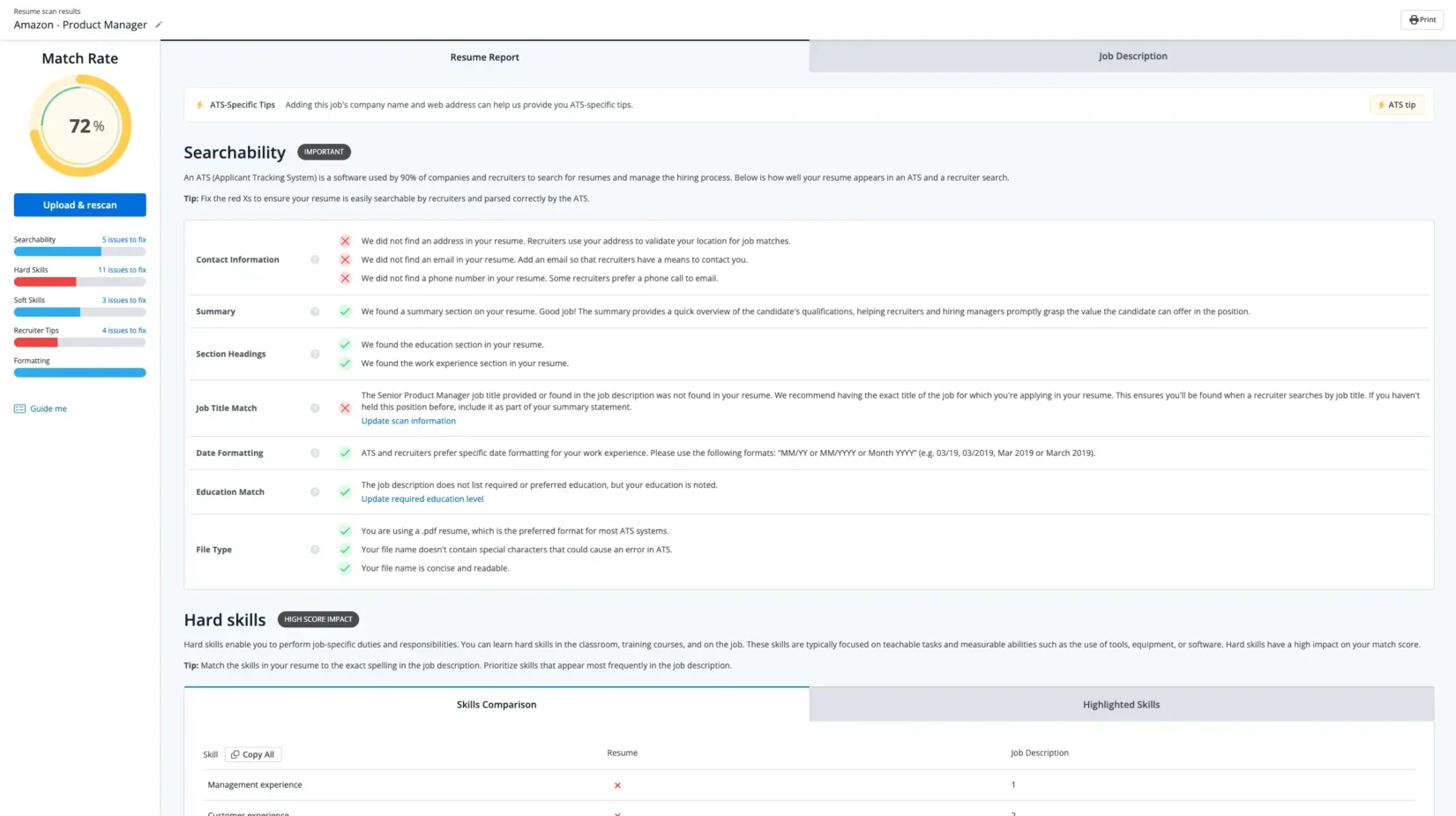
Step 3. Run the scan and check your Match Report
Hit “Scan” and you’ll get your Match Report in just a few seconds. The report gives you a Match Rate and shows you exactly how your resume lines up with the job.
What does the Match Report check?
- Searchability: How well does your resume show up in the ATS for this company’s job position?
- Hard and Soft Skills: Does your resume include the skills the job is asking for?
- Formatting: Are there any layout problems, unusual fonts, or design choices that might confuse an ATS?
- Recruiter Tips: How does your resume look to a human recruiter giving it a quick scan?
- ATS-Specific Tips: what optimizations should you make specific to the ATS the company is using?
Think of the Match Report like a checklist. It tells you what’s working and what still needs to be fixed before you apply.
Step 4. Make the changes the scanner suggests
Now it’s time to update your resume based on what the Match Report found.
What to focus on:
- Add missing keywords into your work experience and skills sections — but make sure they fit naturally into your sentences.
- Include the job title from the posting in your resume headline or summary to give yourself a 10.6x times higher interview rate.
- Remove or replace formatting flags like tables, images, or unusual bullet points that the ATS might not read correctly.
A few things to keep in mind:
- You don’t have to use every keyword the report mentions. Focus on the ones that match your real skills and experience.
- Try to use the same wording as the job description when adding keywords.
- If a skill has an abbreviation, include both versions (for example, “Customer Relationship Management (CRM)”).
Pro tip: Want to save time? Try the One-Click Optimize feature: it uses AI to adjust your resume’s wording to match the job description automatically. You can always review and tweak the changes afterward.
Step 5. Download your resume and apply
Once your Match Rate looks strong, download your finished resume.
Before you submit:
- Save it as a readable PDF (preferred unless the application asks for something different).
- Give your file a simple, professional name, something like “Jane-Smith-Resume.pdf.”
Remember: Every time you apply to a new job, come back and repeat these steps with the new job description. Customizing your resume for each application is one of the best things you can do to get found in the ATS and seen by a hiring manager.
What are the do's and don'ts of ATS resume formatting?
- Use the job title. Include the job title from the job description in your resume headline or summary.
- Incorporate keywords. Add keywords from the job description throughout your resume, especially in the skills and experience sections.
- Keep formatting simple. Use a clean, straightforward layout without graphics, tables, or unusual fonts.
- Stick to standard section headings. Use common headings like “Work Experience,” “Education,” and “Skills” so the ATS can easily recognize them.
- Use bullet points. In your “Work Experience” section, use bullet points to make content easier to scan.
- Save as .docx or PDF. Use these common file formats to ensure compatibility with the ATS.
- Avoid graphics and photos. These can confuse ATS software, causing your information to be misread.
- Don’t use uncommon fonts or colors. Stick to basic fonts like Arial or Times New Roman and avoid too many colors.
- Skip fancy formatting. Avoid headers, footers, or text boxes, as they may not be read accurately.
- Don’t overuse keywords. Add keywords naturally to make your resume easier to read.
- Avoid using “responsible for.” Start bullet points with action verbs like “managed,” “created,” or “improved.”
- Don’t include irrelevant information: Focus on skills, experience, and accomplishments that are relevant to the job you’re applying for.
FAQs
The best ATS resume template is simple and clean, with a straightforward layout that avoids complex formatting. Templates with clear section headings like “Work Experience” and “Education” and minimal use of graphics or tables tend to work best. Look for ATS-friendly templates that keep formatting simple and readable.
To format your resume for ATS, use a standard font (such as Arial or Times New Roman) and avoid using graphics, columns, or fancy fonts. Stick to traditional section headers and use bullet points to list achievements and responsibilities. Make sure your file is saved in a compatible format, preferably PDF.
To convert your resume to an ATS-friendly format, simplify the layout by removing any graphics, tables, or unusual elements. Use clear section titles, add relevant keywords from the job description, and focus on a clean, professional look. Saving it as a PDF file will also help ensure it’s readable by most ATS.
Some of Google’s templates may be ATS-friendly resumes, but it’s best to check for simplicity. Avoid templates with columns, graphics, or unique fonts. Stick to straightforward layouts, as ATS may struggle with overly designed formats.