



Resume margins seem like a minor detail, but they play an important role in the overall effectiveness of your resume.
Why? Because margins frame your resume with necessary white space. This not only enhances readability but also gives your resume a professional look.
If margins are too narrow, your resume can look overcrowded. If they’re too wide, your resume might seem empty.
In this guide, we’ll dive deeper into how to optimize your resume margins for maximum impact and readability.
For resumes, standard margins should be one inch on all sides. This provides a balanced layout and makes the resume easier to read. While you can reduce margins to 0.5 inches if needed to fit more content, it’s recommended to keep them above 0.5 inches to avoid a crowded appearance.
What is the standard margin size for a resume?
Typically, resume margins are set at one inch on all sides. This size is widely accepted and provides a clean, readable layout that is neither too cramped nor too spacious.
Here’s an example of a standard resume with one-inch margins on all sides:
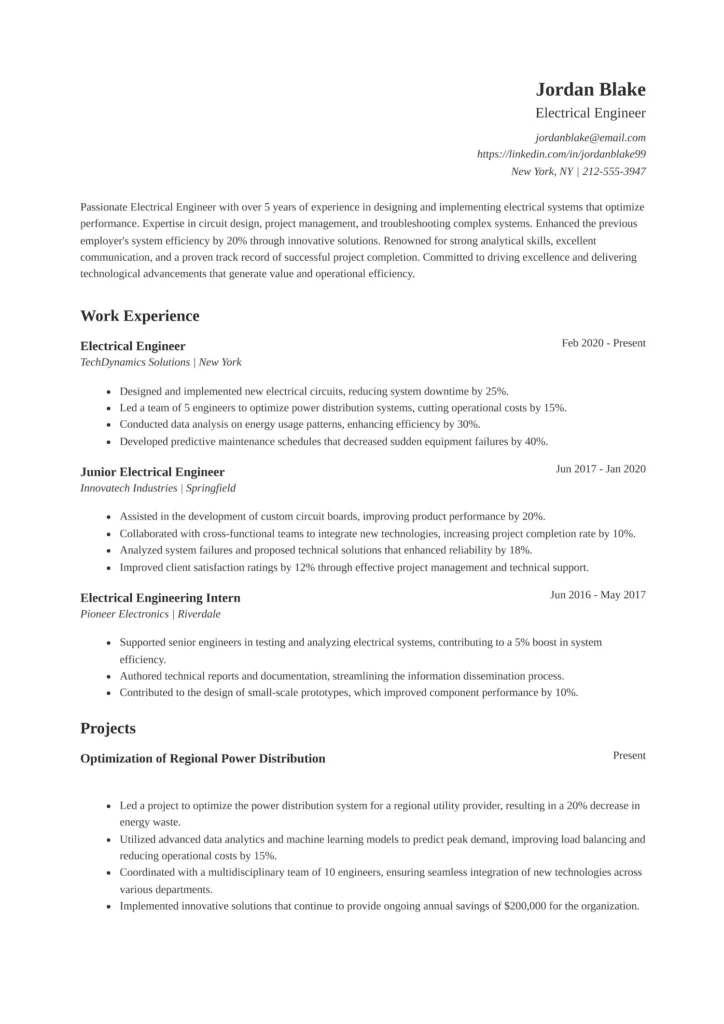
One-inch margins also make your resume easy to read for Applicant Tracking Systems or ATS. This is the computer software that most companies use today to collect, sort, and filter the resumes they receive. In our tests, resumes with margins that were abnormally wide or narrow caused parsing issues in some ATS.
If an ATS has trouble reading your resume, it might not include your resume in search results for specific keywords, skills, or job titles. That means it might not be seen by a hiring manager and you won’t get the job. This is why it’s so important to make sure you know how to create an ATS resume.
Use a resume scanner for perfect resume margins
To see how ATS-friendly your resume is, run it through Jobscan’s resume scanner. It will alert you to any issues, including margin errors, that will prevent an ATS from reading your resume.
You’ll also receive a score that tells you how closely your resume matches the description of the job you’re applying for. Tailoring your resume is important because recruiters look for specific keywords when they search for qualified candidates. The ATS will pick up on those. The higher your score the more likely you are to get an interview.
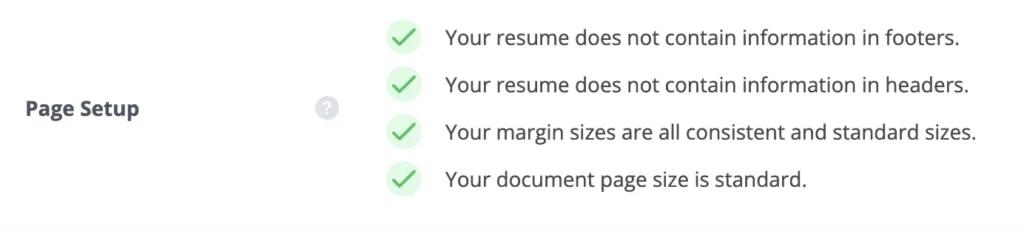
Below is an example of a Jobscan report.

This section below is an image of the Match Rate showing tips for a resume page setup, including margins. It states “Your margin sizes are all consistent and standard sizes.” If the margins were not ATS-optimized, the scanner would tell you so that you could easily fix it. It’s that simple.

Step-by-step guide to setting resume margins
The process of setting resume margins varies depending on the word-processing software you’re using.
Here’s a simple guide on how to set or customize margins in various popular word-processing programs.
How to set resume margins in Microsoft Word
- Open your document in Microsoft Word.
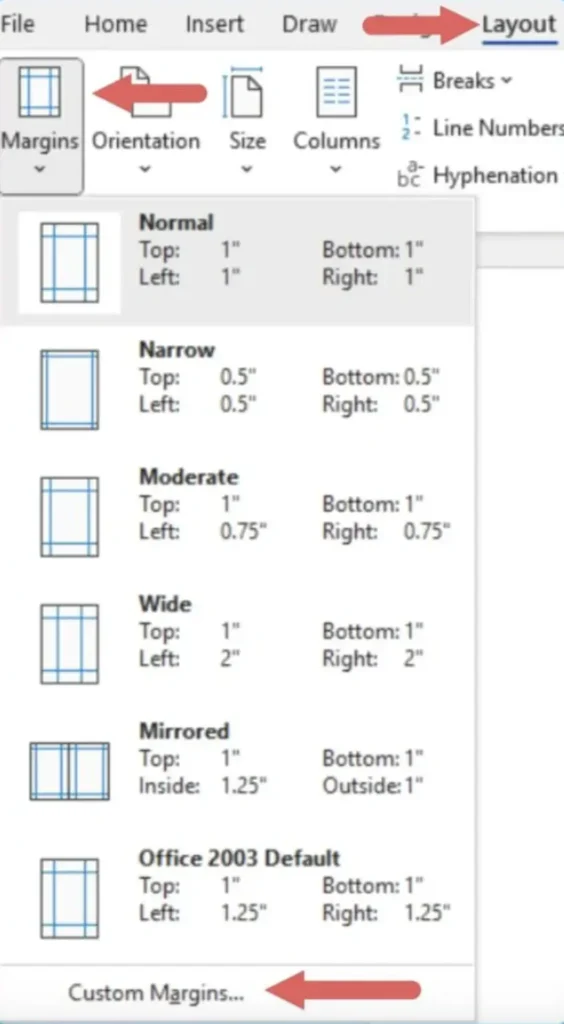
- Click on the “Layout” or “Page Layout” tab.
- Click on “Margins” and select one of the preset margin sizes or choose “Custom Margins” to enter specific measurements.
- Ensure that all margins are uniform for a balanced look.
- Then choose either a PDF or Word format when you’re ready to download.
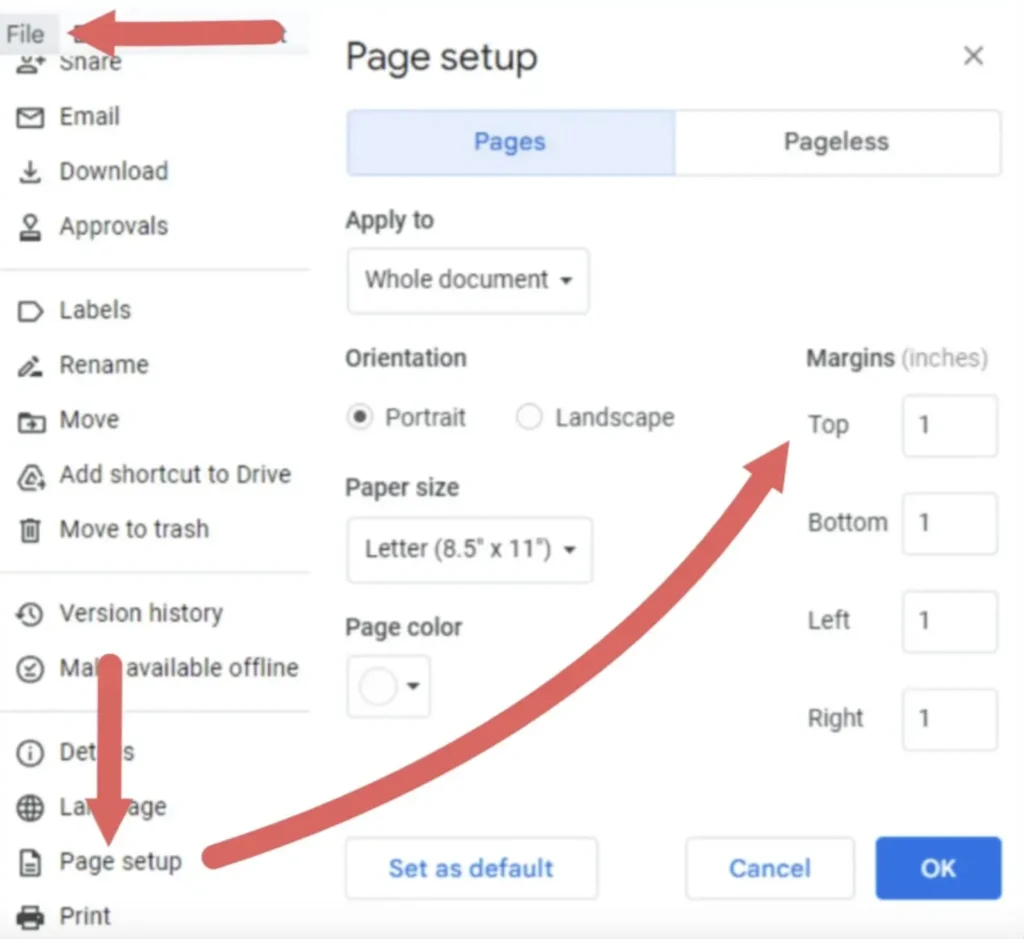
How to set resume margins in Google Docs
- Open your document in Google Docs.
- Click on “File”, then “Page Setup”.
- In the Page Setup dialog box, enter your desired margin sizes in the top, bottom, left, and right fields.
- Click “OK” to apply the changes.
How to set resume margins in LibreOffice Writer
- Open your document in LibreOffice Writer.
- Click on the “Format” menu at the top of the screen.
- From the drop-down menu, choose “Page Style” to open the Page Style window.
- In this window, select the “Page” tab to access margin settings.
- Under the “Margins” section, input your preferred margin sizes.
- Click ‘OK’ to save the settings.
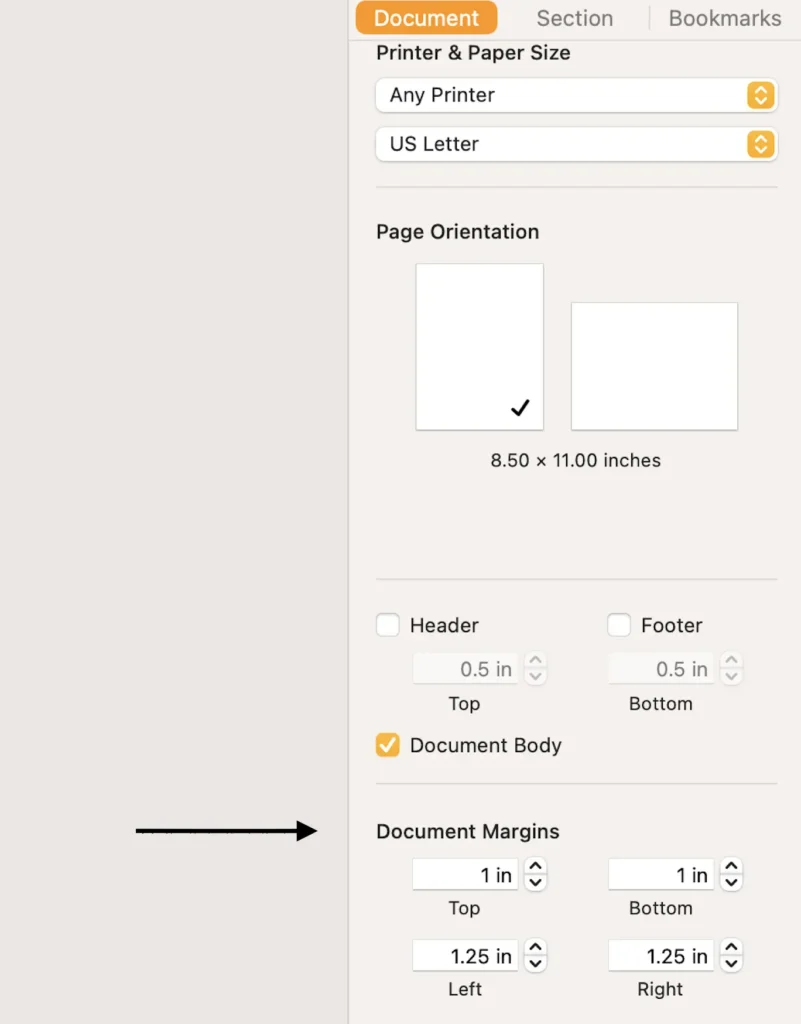
How to set resume margins in iWork Pages
- Open your document in iWork Pages.
- Click on the “Document” button in the top right corner.
- Under the “Document Margins” section, use the up and down arrows or input the values directly to set your desired margins.
- Ensure consistency across all sides for a professional look.
Customizing resume margins for different industries
Resume margins can vary slightly depending on the industry. Here are some basic guidelines:
Margins for standard professional resumes
In traditional industries like law, finance, or healthcare, stick to the standard one-inch resume margins. This maintains a professional look and aligns with the expectations of these industries. It’s also ATS-friendly.
Margins for creative resumes
For creative fields such as graphic design, advertising, and digital media, you can experiment with slightly narrower or wider resume margins. This can showcase your design skills, but you must make sure your resume is still highly readable.
Margins for executive resumes
Executive resumes can benefit from slightly wider margins. This adds a touch of sophistication and provides a clean, uncluttered space to present your experience and achievements.
Resume margins for printing
Your resume margins should look just as good printed on paper as they do on your computer screen.
Here are some tips for making sure your printed resume is visually appealing and easy to read:
- Use a standard paper size: In the United States and many other North American countries, the standard paper size is 8.5″ x 11” (also known as letter size).
- Test print your resume: This will help you catch any issues with resume margins, fonts, or layouts that might not be apparent on a computer screen.
- Check for consistent margins: After printing, make sure your resume margins are consistent on all sides.
- Check every page: If your resume is more than one page, check that the margins and layout are consistent on every page.
- Use high-quality paper: A slightly heavier paper than standard printer paper will give your resume a more professional feel.
Beyond margins: Comprehensive resume formatting
Resume margins are important, but so are other formatting elements. Font style, text alignment, and spacing also contribute to the readability and visual appeal of your resume. Avoiding ATS resume formatting mistakes often starts with simple formatting decisions.
Choose the right font style and size
Select a resume font that is professional and easy to read. Classic choices like Arial, Times New Roman, or Calibri in a size between 10 and 12 points work well.
The font size for your name and section headers can be slightly larger to draw attention to them.
Align your text properly
Align your text to the left. This is the most readable and standard alignment for resumes. It’s also the most ATS-friendly resume format.
Centered text can be used for your name and contact information at the top, but avoid using it for large sections of text.
Avoid justifying text on your resume as it can create irregular spacing between words, making it harder to read.
Optimize your paragraph and section spacing
Keep your paragraph spacing consistent. A good practice is to use single spacing for your content with an extra space between each section. This will differentiate your resume sections without causing clutter.
Avoid headers and footers, as some ATS systems have trouble reading them.
Determine how long your resume should be
If you have less than 10 years of experience, aim for a one-page resume. If you have extensive experience or technical qualifications, a two-page resume will probably be needed.
The most important thing when writing your resume is make sure that you include everything relevant to the job you’re applying for.
Use bullet points effectively
Use bullet points to list your achievements and responsibilities. Bullets are easier to skim and highlight your accomplishments more effectively than dense paragraphs.
Keep your bullet points brief and start each one with strong action verbs.
Wrapping up resume margins
- Resume margins are crucial for readability and professionalism. They frame the content and affect the overall appearance.
- When it comes to margins for columns on a resume, we suggest avoiding them altogether. ATS cannot reliably scan them.
- The typical resume margin size is one inch on all sides, striking a balance between readability and space. This size is also compatible with Applicant Tracking Systems (ATS).
- Stick to one-inch resume margins for traditional industries like law, finance, or healthcare. Margins on creative resumes can deviate slightly from this rule, but readability must be maintained.
- Choose professional, readable fonts like Arial or Times New Roman. Font size should be 10-12 points.
- Align text to the left for readability and ATS compatibility. Avoid justifying your text as it can create unwanted spaces between words.
- Use color sparingly, avoid graphics and images, and consider using ATS-friendly resume templates.
- When printing your resume, use standard paper size (8.5″ x 11” in the U.S.) and always test print to check margins and layout.
FAQs
The standard margin size for a resume is one inch on all sides.
In MS Word: Go to the ‘Layout’ tab, click ‘Margins’, and select your desired size.
In Google Docs: Click ‘File’, then ‘Page Setup’, and set your margins under the ‘Margins’ section.
No, it’s best to left-align your text. Justified text can create uneven spacing between words, making it harder to read.
Yes, you can slightly increase the margins, but avoid making them too wide. It’s better to add more relevant content to fill the space.
Yes, resume margins do matter. ATS systems can misread resumes with very narrow or very wide margins. Stick to standard margins for better compatibility.
Resume margins should generally be around one inch on all sides, providing a clean and professional layout.
Keeping resume margins at no more than an inch ensures a balanced amount of white space and text. This makes the resume more readable and aesthetically pleasing, while also being compatible with ATS.
Yes, if your resume is less than one page, you can increase the margins. A standard margin size is generally 1 inch on all sides, but you can slightly increase it if needed to fill the page.