




LinkedIn is the number one online networking tool for job seekers. 87% of recruiters use LinkedIn to scout for new employees. Building a strong LinkedIn profile is key in helping hiring managers and recruiters find and vet you.
Adding your resume to LinkedIn is one way to do that. The question is, how can you add your resume to LinkedIn so it’s found by hiring teams?
- Click “Add Profile Section” from your profile page.
- In the pop-up, click “Add Featured.”
- Click the plus (+) sign in the upper right-hand corner.
- Choose “Add Media.”
- Select your resume file to attach to your LinkedIn profile.
Save time with an optimized LinkedIn profile using Jobscan’s LinkedIn optimization tool today!
Add your resume to LinkedIn during Easy Apply
If you find a job opportunity with the option for Easy Apply, you can upload your resume when prompted.
To add your resume to LinkedIn during Easy Apply:
Step 1. Search LinkedIn for job opportunities that interest you
Narrow down your search by using the filters right below the search box. You can specify the job type, salary range, and experience level, among others.
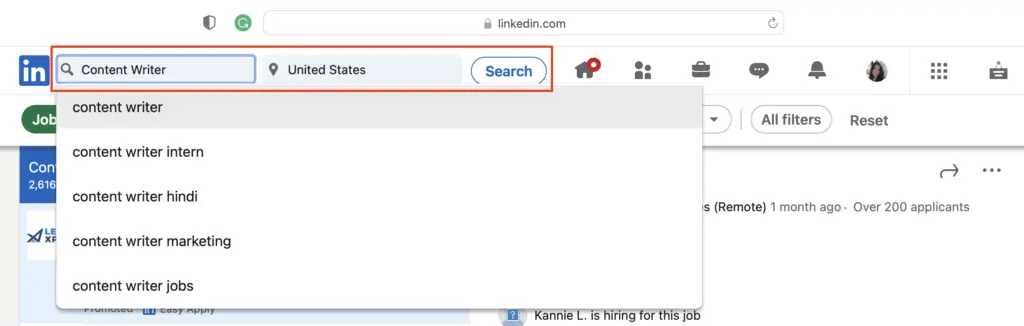
You can also click the “Easy Apply” button in the filters section to show only the job postings with the Easy Apply feature.

Learn More: Different Ways to Job Search on LinkedIn
Step 2. Click on the job title to open the information panel for the position
When you click the job you are interested in, all job post details will be displayed on the right side of the screen. You will find the scope of the job, requirements, location, and other important information.
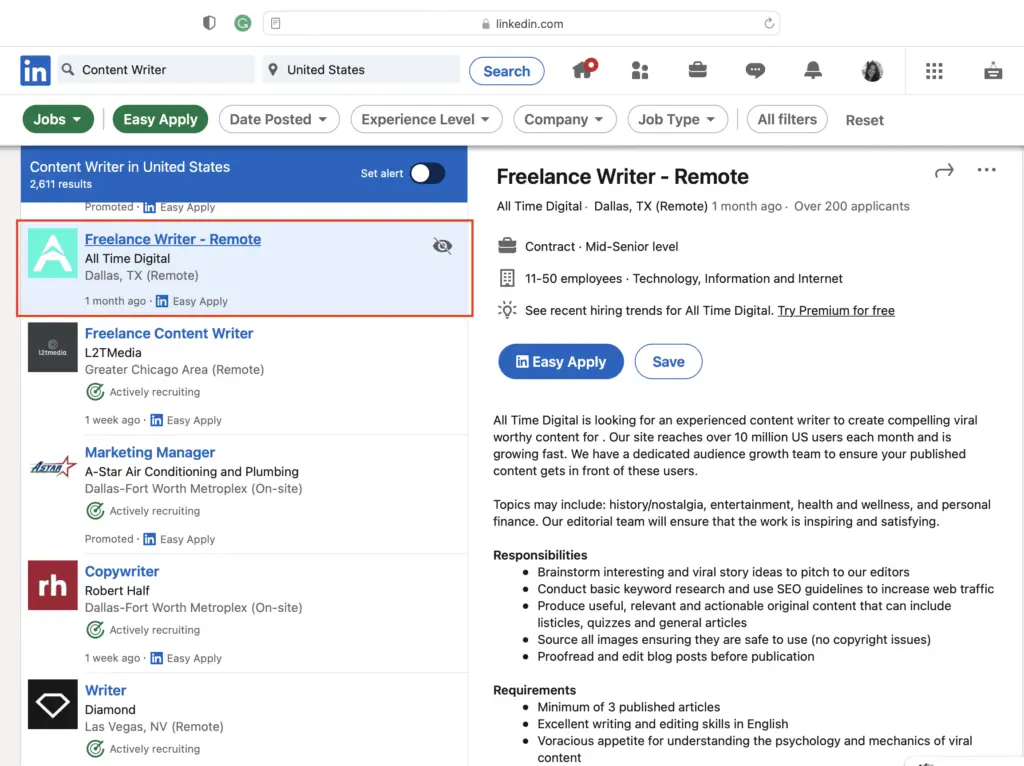
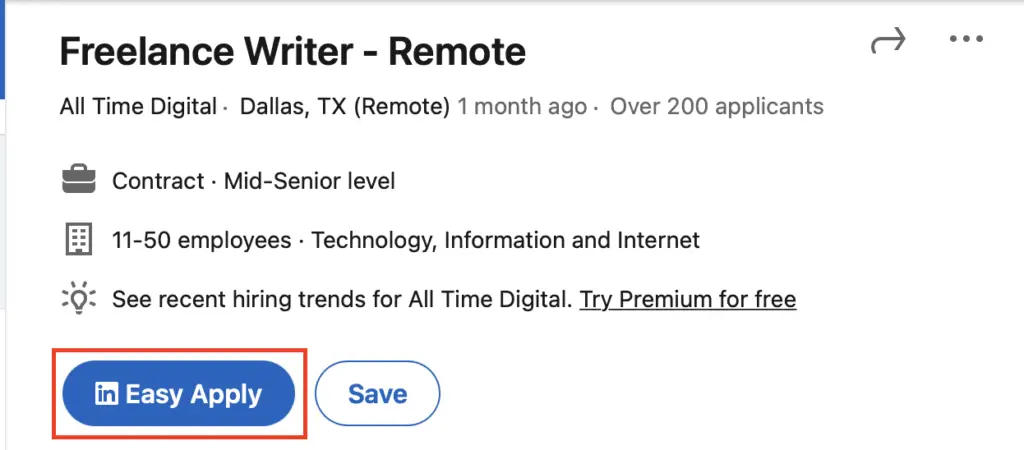
Step 3. Click on “Easy Apply” and fill out the required information fields
Once you click the “Easy Apply” button, you will be required to complete fields like your name, email address, phone number, and home address. Be sure to complete all the required fields.
Step 4. Under “Resume,” click the button to upload your resume as a .doc, .docx, or PDF file that’s 2MB or less in size

Step 5. Complete all required fields and submit your application when finished
Once you upload your resume, there will be a few more required fields asking for more information about you. Complete all the fields, verify that all information is correct, and hit “Submit.”
LinkedIn will send you application updates when the job poster downloads your resume.

Upload your resume to your LinkedIn account
You can add your resume to your LinkedIn account for future job applications by going to Job Application Settings.
To navigate to that page from your LinkedIn feed:
Step 1. Go to the navigation bar and click “Me”

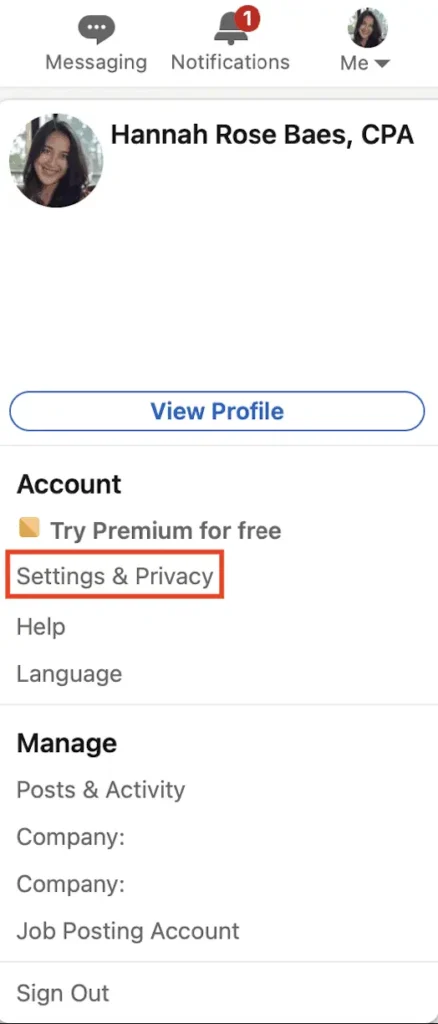
Step 2. In the dropdown menu, select “Settings & Privacy”
Open “Settings & Privacy” to adjust your profile visibility, messaging settings, and select your preferences.
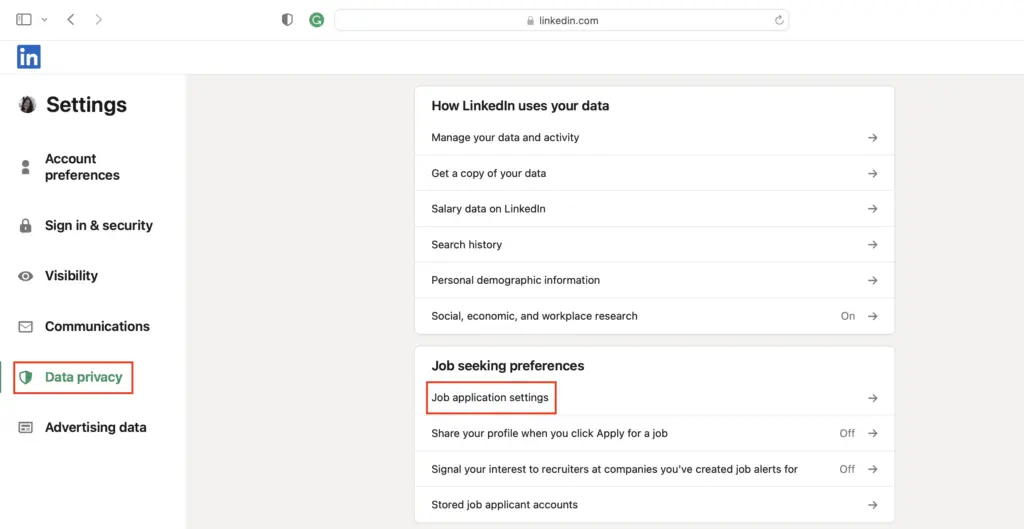
Step 3. Under “Data Privacy” on the left-hand sidebar, scroll down to “Job Application Settings”
Under “Job Seeking Preferences,” you can change your settings to share your profile, make your job alerts visible to recruiters, and more.
Step 4. Click “Upload Resume” under the “Manage Your Resumes” header

You can upload more than one resume to your account, making it easier to use different resumes for each role.
Read more: 28 LinkedIn Profile Tips to Supercharge Your Job Opportunities
Attach your resume to your LinkedIn profile (Featured Media section)
Uploading your resume to your profile as “Media” is another option to keep your resume on your profile. This option is also great for uploading a portfolio or project decks alongside your resume.
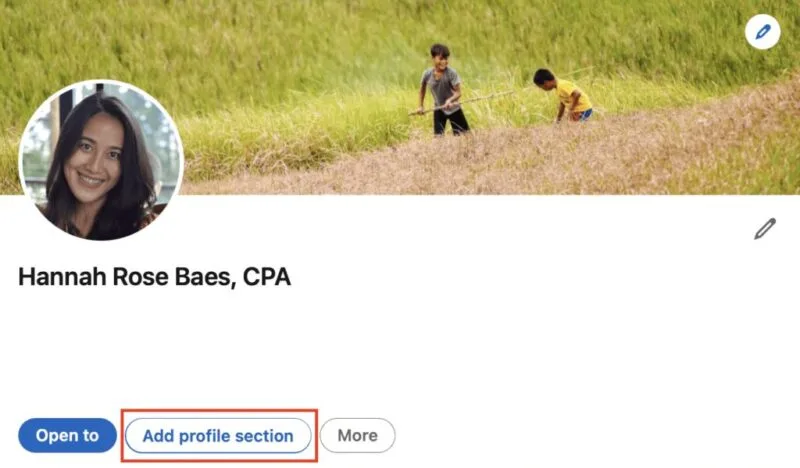
Step 1. Click “Add Profile Section” from your profile page that sits below your LinkedIn profile picture and LinkedIn headline
The “Add Profile Section” is the hub that controls what information is displayed on your profile. You can add education, courses, skills, and other key details that recruiters want to know.
Learn More: How to Write a LinkedIn Headline (with Examples)
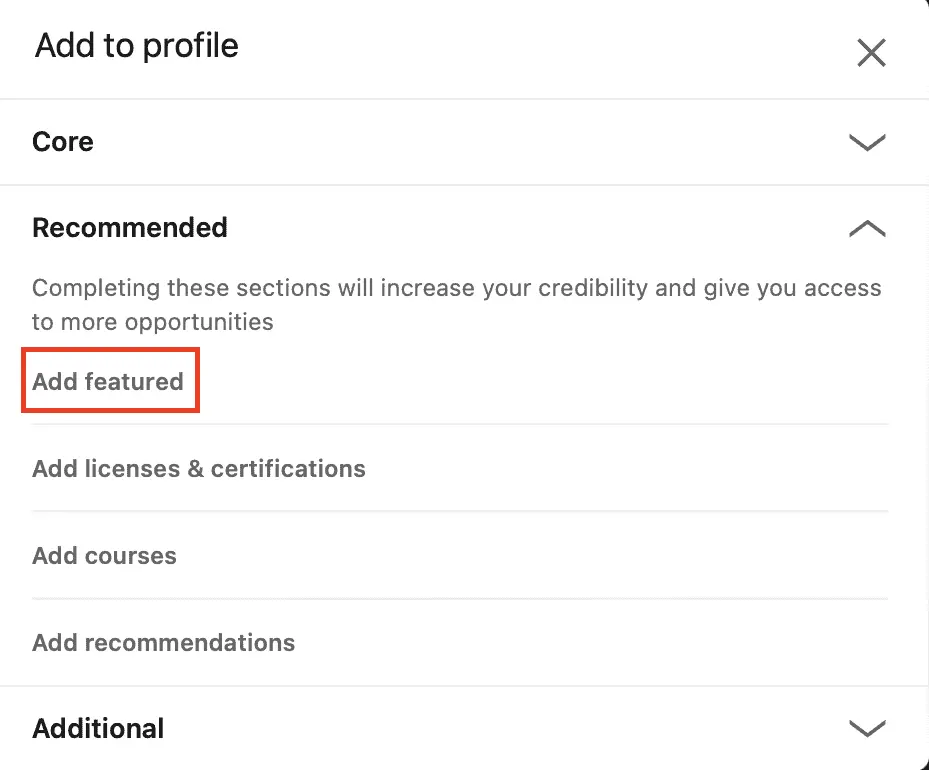
Step 2. In the pop-up, click “Add Featured”
Your “Featured” options include writing posts, adding articles, and sharing links to help frame your profile as an industry expert.
Step 3. Click the plus (+) sign in the upper right-hand corner and choose “Add Media”
Media can include photos, videos, presentations, or other channels that can help show off your skills and prove your experience. These underrated highlights can help attract attention from recruiters and differentiate you from other professionals in your field.
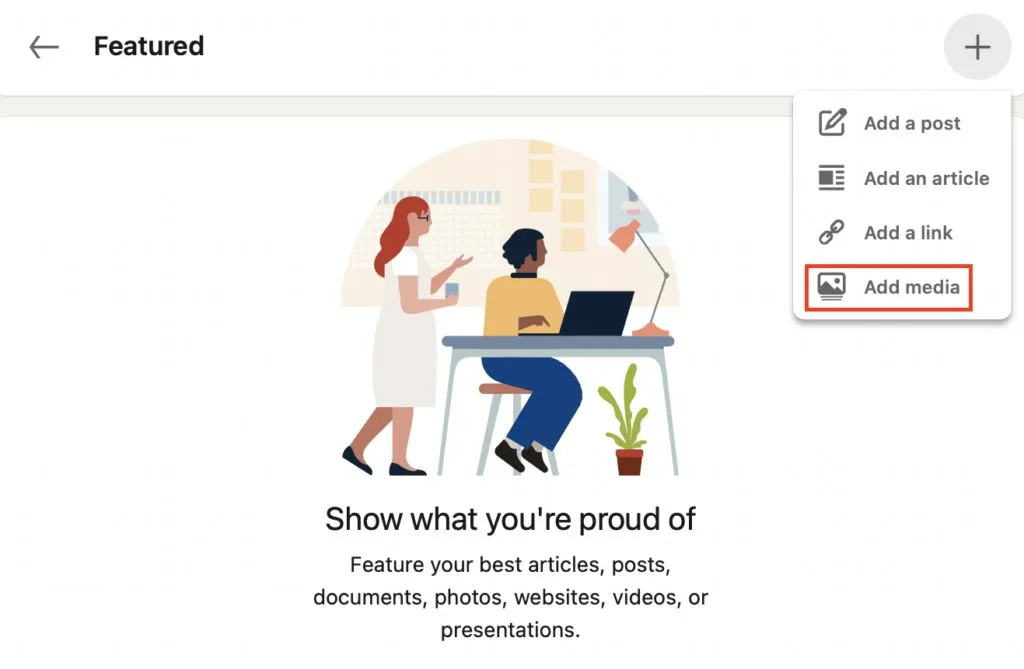
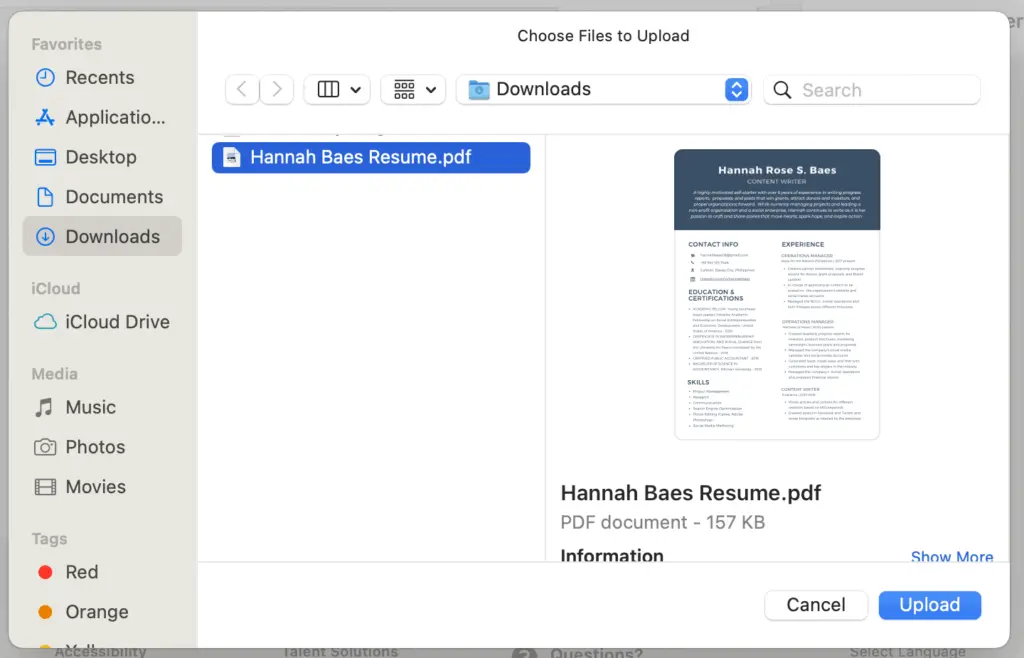
Step 4. Your finder window will open so you can select your resume file to attach to your LinkedIn profile
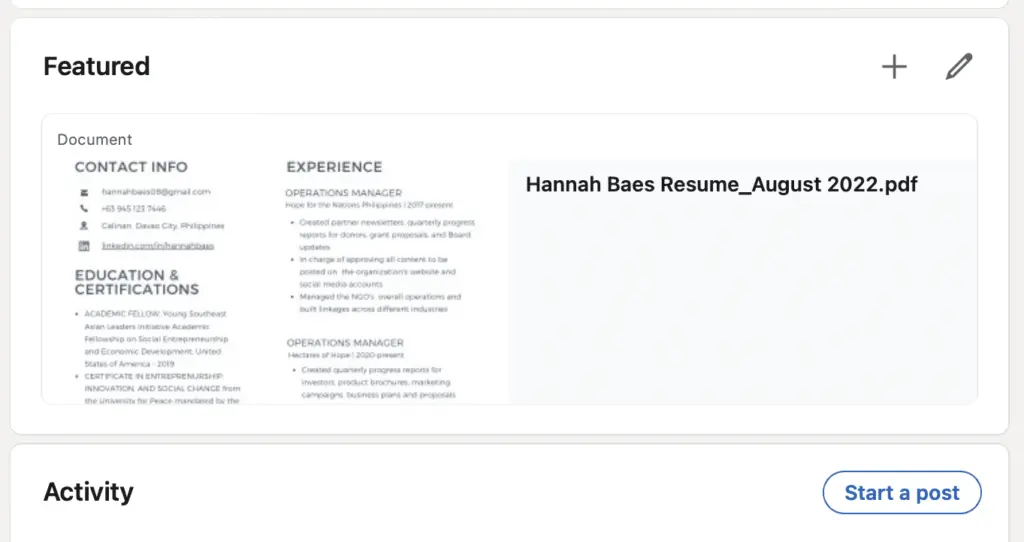
Recruiters, hiring teams, and other users will be able to see and download your attached resume file.
Keep Reading: How to Download Your LinkedIn Resume
Should you add your resume to LinkedIn?
There are some distinct benefits and drawbacks to adding your resume to LinkedIn:
- You gain more exposure and hiring managers can find your resume without applying to a specific job, increasing your chances of inbound job leads.
- Adding a resume can signal that you’re open to new job opportunities.
- LinkedIn can use your resume to give you more targeting job opening recommendations.
- It encourages you to use Easy Apply with your saved resume, so you miss out on the boost that comes from tailoring your resume to the job description.
- You have to upload updated resume files to keep your resume fresh and relevant to the opportunities you’re open to.
What are the differences between a resume and a LinkedIn profile?
It’s important to remember that your resume and LinkedIn have different purposes.

LinkedIn is more dynamic—a place for storytelling, personalization, endorsements, recommendations, and engaging multimedia. Clair shares that “unlike a resume, which you update periodically, your LinkedIn profile should be continuously updated with new experiences, accomplishments, and skills. This keeps your profile current and shows that you are actively engaged in your professional development.”
Adding your resume to your LinkedIn should enhance your profile, not be an exact copy.

Attach your resume to LinkedIn with the understanding that the two formats aren’t interchangeable. Instead, he suggests you “use your resume to share your brand with one employer with the goal of an interview, and use LinkedIn to communicate your brand far and wide with the goal of a solid professional reputation.”
Learn More: How to Write a LinkedIn Summary (with Examples)
LinkedIn resume best practices
When uploading your resume on LinkedIn, it’s still critical to format your resume for the applicant tracking system (ATS). The ATS stores and parses your resume for specific keywords from the job description. Optimizing your resume with the correct format and keywords can help you land the interview.
- Keep your resume concise and direct.
- Use the chronological resume format.
- Highlight relevant skills and experiences.
- Show off measurable results with numbers and metrics.
- Optimize with relevant keywords for your desired role and industry.
- Avoid buzzwords and fluff.
- Leave out headers, footers, tables, graphics, and images.
- Delete irrelevant experience that doesn’t support your desired career trajectory.
Use Jobscan’s ATS-friendly resume templates for a polished document.
Keep Reading: Everything You Need to Know About LinkedIn Certifications
How to optimize your LinkedIn profile
Intentionally and strategically building every section of your LinkedIn profile takes a lot of effort and time, but the ROI is worth it.
Save your time by using our smart LinkedIn optimization tool to see what you can change in your profile and how you can improve and optimize it so recruiters will find you for interviews.
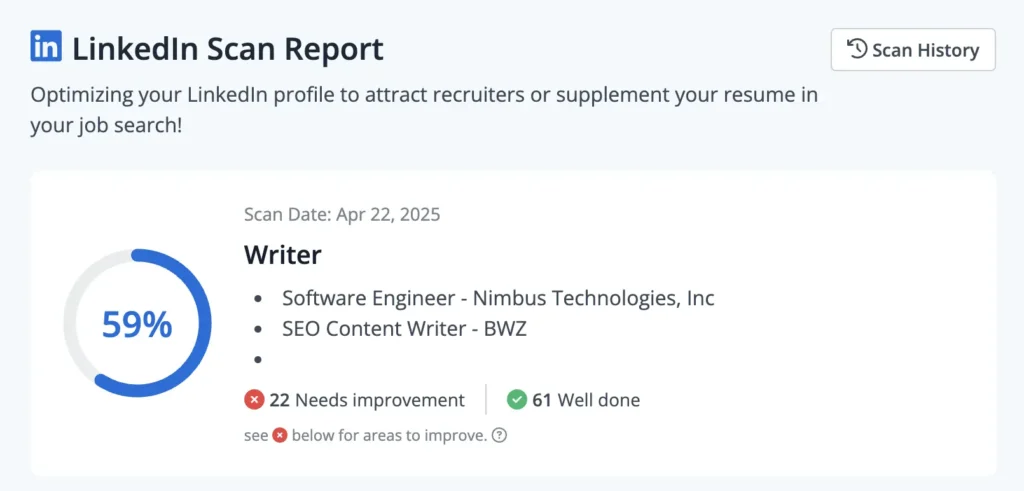
You’ll start with step one: “Add LinkedIn Profile URL.” Just paste your LinkedIn profile URL, add at least three job descriptions, and click “Scan,” shown below.
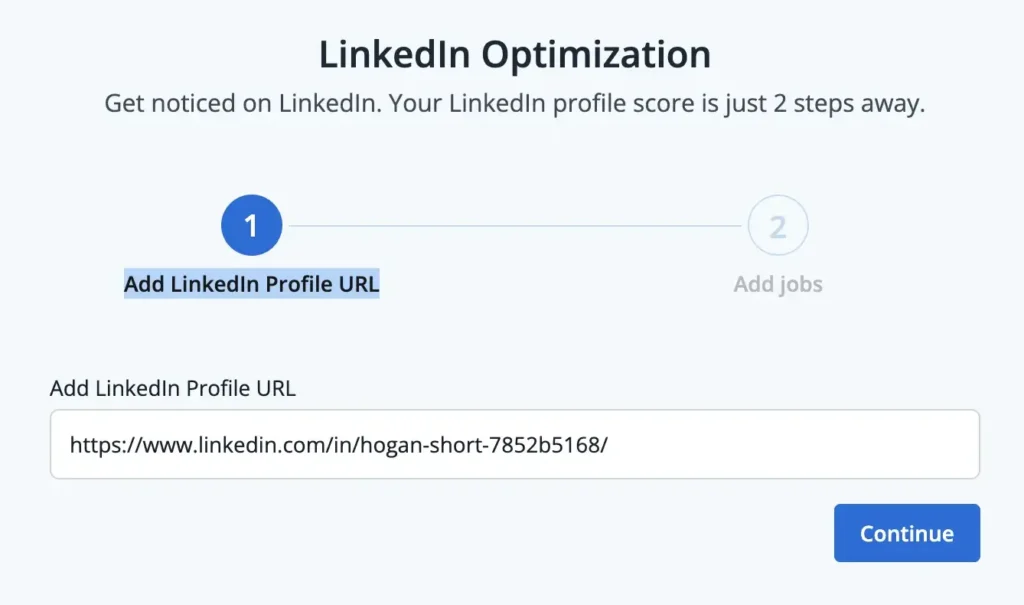
You’ll receive a score that shows how well your profile matches what recruiters are looking for. You’ll immediately see what is optimized, and which areas need improvement.
Our AI tools can then help you brainstorm new LinkedIn headlines and LinkedIn summaries. Just click the blue button (shown below) and get an AI suggested new headline to help boost your score. You can also generate an entirely new summary.
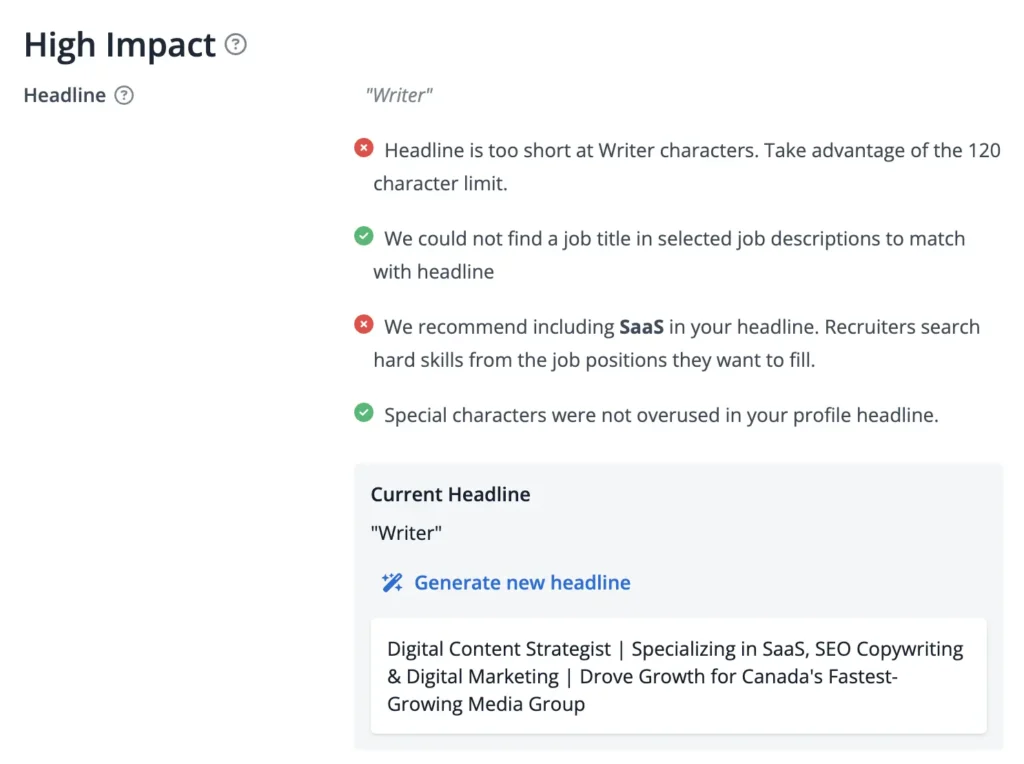
This tool can show you keywords your missing, red flags in your work experience section, basic information suggestions, and so much more. After you’re finished, just scan it again and see how your score improved.
An optimized LinkedIn profile will help you keep your presence current and encourage inbound leads from recruiters to find their way to your inbox.
Can you post your resume on LinkedIn without your employer knowing?
Worried your boss might see your job search? LinkedIn offers settings to help you keep things discreet. While not 100% foolproof, these steps significantly reduce the chances of alerting your employer.
- Go to Settings & Privacy > Visibility.
- Turn off “Share profile updates with your network.”
- Under Profile viewing options, choose “Private mode” to browse anonymously.
- In Connections, limit who can see your connections.
- Block or remove specific individuals, if needed.
- Avoid uploading your resume publicly—use private application uploads instead.
Key takeaways
Here’s a step-by-step guide to summarize everything for you on how to add your resume to LinkedIn:
- Access Your Profile: Log in to your LinkedIn account and navigate to your profile page.
- Add a Profile Section: On your profile page, click the “Add profile section” button.
- Choose “Featured”: In the pop-up window, select “Featured”.
- Add Media: Click the plus (+) sign in the upper right-hand corner. Choose “Add Media”.
- Upload Your Resume: Select your resume file from your computer and click “Upload”. Once uploaded, you can add a title and description if desired. Arrange your featured content as needed. Save your changes.
FAQs
You can add your resume to LinkedIn in a few ways:
• Featured Section: You can upload your resume directly to your LinkedIn profile by using the “Featured” section. Click on your profile, scroll down to the “Featured” section, and click the “+” icon to add your resume. This makes it visible to anyone viewing your profile.
• Job Applications: When applying for jobs through linkedin, you can upload your resume during the application process. This resume will be attached to your application but not visible on your public profile.
• Profile Summary: Some users choose to include a link to their resume in their profile summary. This can be done by adding a link to a cloud storage service like Google Drive or Dropbox.
If you’re having trouble uploading your resume on LinkedIn, it might be due to the following reasons:
• File Size or Format: LinkedIn only accepts certain file types (PDF, DOC, DOCX) and has a file size limit of 5 MB. Ensure your resume meets these requirements.
• Technical Glitch: Sometimes, temporary issues with LinkedIn’s platform can prevent file uploads. Try clearing your browser cache or using a different browser.
• Profile Section: If you’re trying to upload your resume directly to a section of your profile that doesn’t support file uploads, such as the “About” section, it won’t work. Use the “Featured” section instead.
To attach your resume to a LinkedIn message:
• Messaging Interface: Open the LinkedIn messaging interface with the person you want to send your resume to.
• Attach File: Click on the paperclip icon in the message box, select your resume file (PDF, .doc, or .docx format), and click “Send.”
Recruiters can only see your resume on LinkedIn if you’ve uploaded it to the “Featured” section of your profile. If you have applied for a job through LinkedIn and uploaded your resume as part of the application process, only the recruiters for that specific job will see your resume. Additionally, your LinkedIn profile itself acts as a resume, providing recruiters with your professional information.
It’s generally recommended to upload your resume as a PDF. PDFs preserve the formatting and are more universally accessible. Word documents (.doc or .docx) can sometimes have formatting issues when opened on different devices or software versions, and they may not look the same as intended.